
iReal Pro, Windows
- Windows 10 version 19041.0 or higher, Windows 11
- License: activate up to 3 PCs
- Support for Intel and ARM
- Key commands: shown in menus
- Tool tips: hover mouse over buttons
- Forum: download songs for free
- Languages: in Settings
- Import backup files to transfer your songs (see below)
Available from the MS App Store with a free 7 day trial (fully functional).
Sorry no discounts, no refunds or transfers with any other App Store purchase. App stores do not allow transfers between each other.
iReal Pro is a one-time purchase from the relevant app store, no subscriptions, with all subsequent updates free.
License
Did not arrive: Please check your spam email, otherwise retrieve/resend license key
Activation problems: "could not connect" information page
Quick start guide
Overview
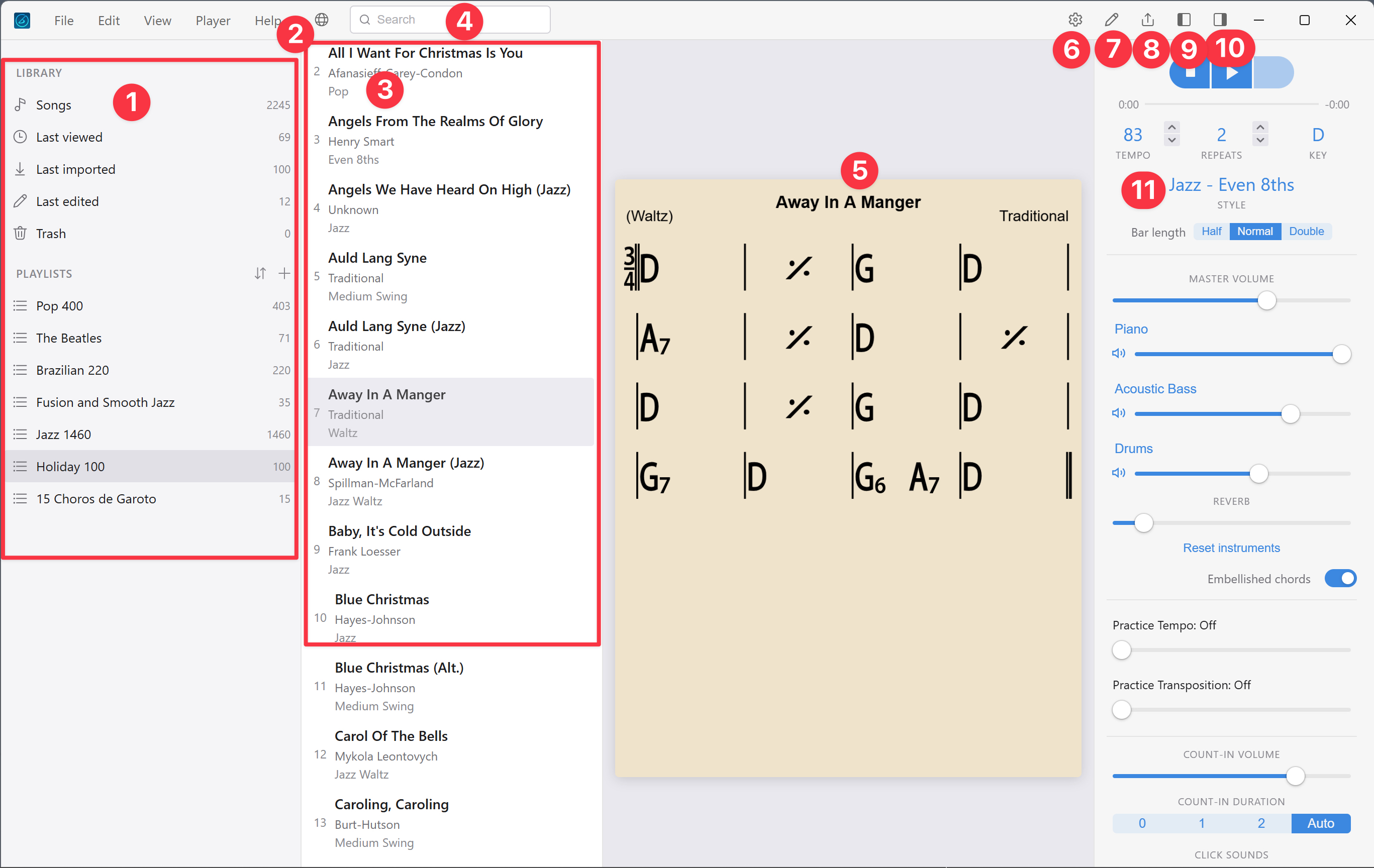
- Song library, Playlists
- Forum globe icon
- Song list
- Search (the currently selected library)
- Current song
- Settings
- Edit, Duplicate, New song
- Share, Export, Search for the song online, Export Playlist
- Library: toggle (left) sidebar (or use View menu)
- Player controls: toggle (between on right or minimal at bottom)
- Playback style: change, click for dropdown menu, Jazz, Latin, Pop ...
Existing users
Transfer all your songs/playlists to Windows via a backup file
PC Android emulator: in some emulators you set up a shared Android/PC folder or use their file manager (BlueStacks) to copy files between both environments
Forum [2]

Download songs and playlists
Click the Forum globe icon [2], navigate around, click to download songs and playlists.
There could be problems downloading within a browser, so the built-in forum window is best.
- No need to register;
- All songs and playlists are free to download;
- Any song can be duplicated, edited after being imported;
- If you have signed in, you can post at the forum (take part in discussions, upload songs for others, ask questions...)
Essential Playlists download page
Import
File > Import to import songs, playlists saved in iReal Pro format (.html) and to import backup files from another device with iReal Pro.
iReal Pro imports only iReal Pro formatted files (a variant of .html), it cannot import audio, PDF, doc. etc.
Importing using a browser
If you are at other websites with embedded song/playlists links (or viewing the iReal Pro forum website in a browser, not in the forum window inside iReal Pro)
- Right-click on the song or playlist title link
- Copy link (or Copy link address)
- Return to iReal Pro
- File > Import from Clipboard
Contextural menus
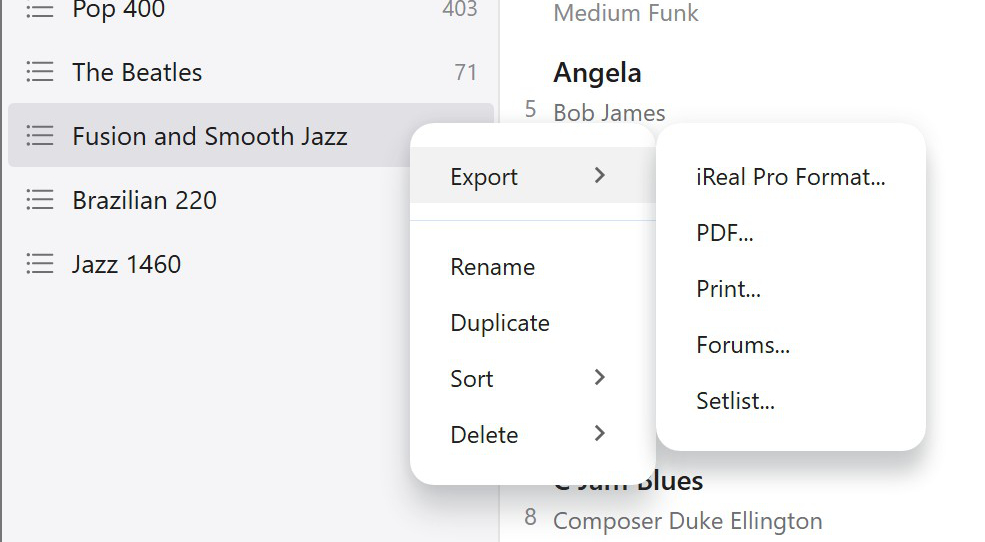
Right-click a playlist for options for that playlist
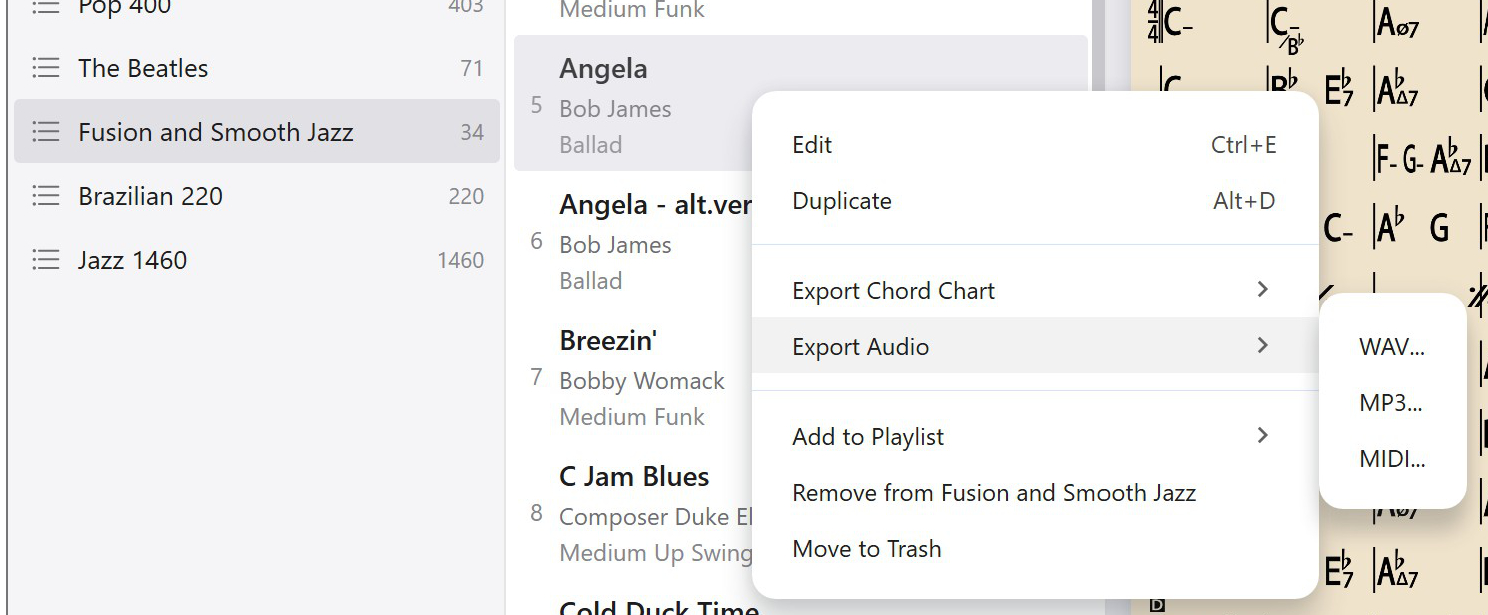
Right-click a song for options for that song
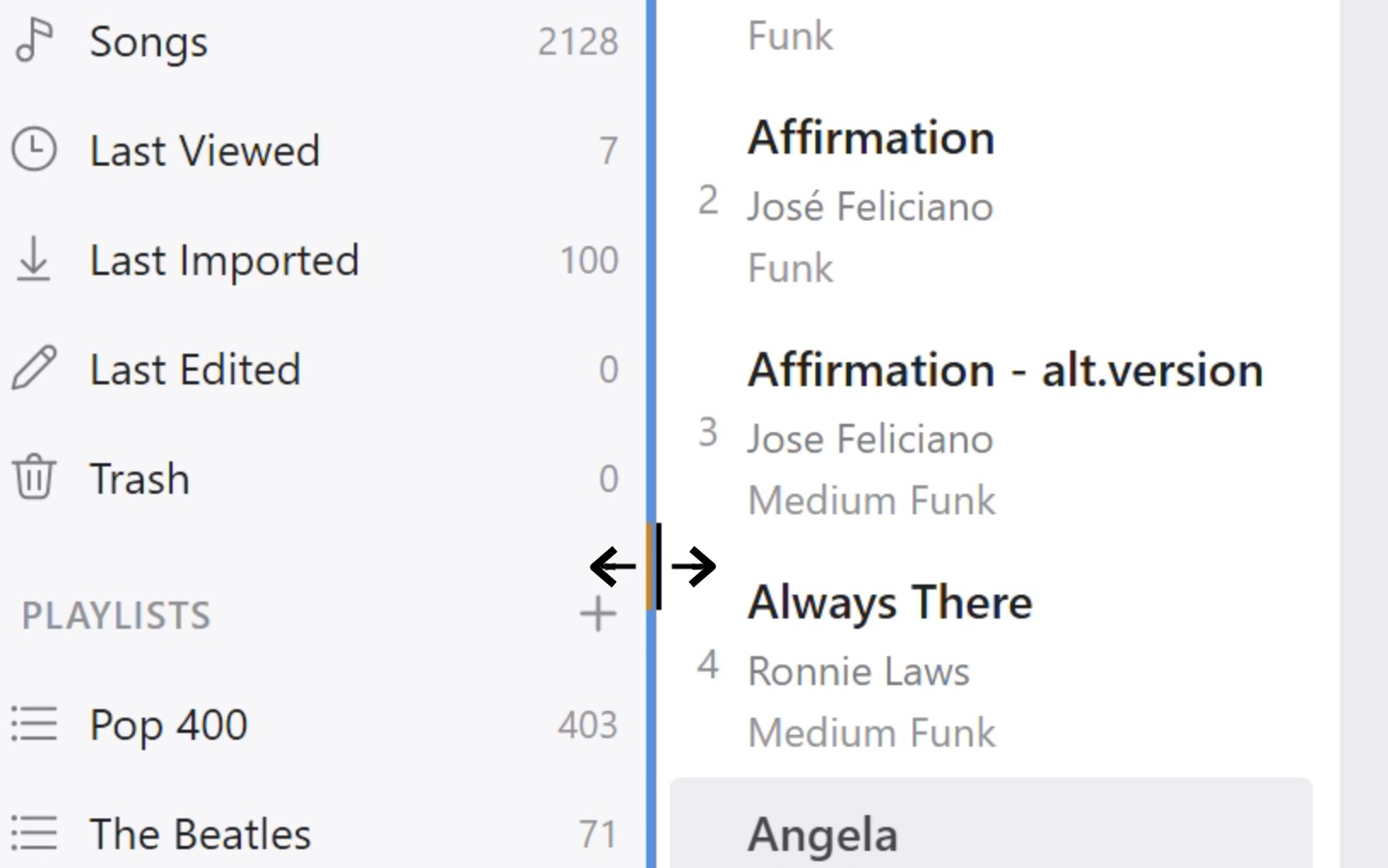
Column Width
Mouse pointer exactly on the vertical column line and drag left or right. Use for Library/Playlists or song column width.
iReal Pro Settings [6]
Includes Theme, Font, 'm' for minor, Highlight Rehearsal symbols, Keep display awake, Backup button, Library snapshots, Restore Exercises, Reset all settings, Licensing, Add new playlists to the top, Right/Left hand (guitar, ukulele)
Playback position on/off (now in 2026.4.19 or higher)
Language
English, Italian, German, Chinese (simplified), Spanish, French, Portuguese, Russian, Korean, Japanese
Transposing instrument
- Concert instruments piano, guitar, flute, voice
- Bb trumpet, tenor sax, clarinet
- Eb alto sax
- F horn
- G alto flute
(or Player menu > Transposing instrument)
Tuning
a415 to a466 (default a = 440Hz)
Store
Purchase optional IAPs, currently Blues, Brazilian, Salsa
New song
Ctrl-N for New song, or File > New song (choose a template), or click the Pencil top right
Editor
- Ctrl-E to edit the currently selected song; Ctrl-E again to exit the editor
- Key commands shown in Edit menu; hover mouse for Tool tips on symbol buttons (not available for all)
- Drag between bars to select a section of the song (for cut, copy, paste, insert space)
Play
See Player menu for key commands (tempo, repeats etc. or use click/touch)
Play - spacebar
Stop - spacebar
Pause - period/full stop
Comma - tap tempo
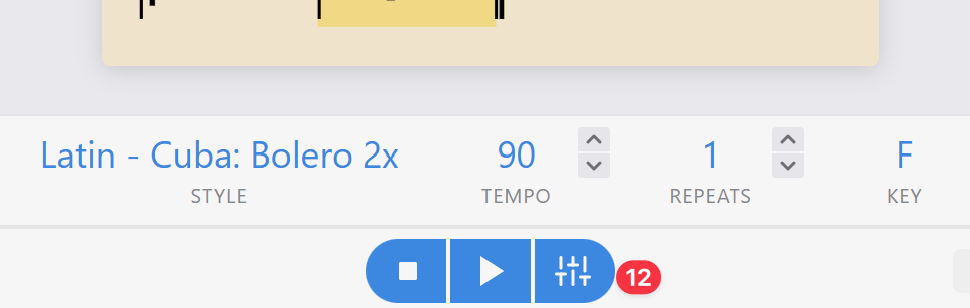
(Minimized Player controls, bottom)
Click/tap for mixer [12]
Drag between bars to create a loop
Side windows
Click [9] to cycle options for the Library, Song list (left sidebar)
Click [10] to toggle Player controls: Right panel has all options (Player controls, Mixer, Practice settings, Count-in); Bottom panel, player controls minimized
Organization
Easily drag and drop songs or groups of songs into Playlists to quickly organize, use this as a way to merge one playlist into another.
Backup
IMPORTANT: from time to time save your songs as a backup file (save to OneDrive or similar). Used to import your Windows songs/playlists into iReal Pro.
File > Backup ...
Updates
By default Windows 11 should automatically be updating your apps;
Otherwise at the MS App Store, click Downloads, Check for updates.
Purchase link
MS app store purchase link for iReal Pro