
- Windows 10 version 19041.0 or higher, or Windows 11
- Intel and ARM
- License: activate up to 3 PCs
- Key commands: also shown in the menus
- Tool tips: hover the mouse over a button
- Languages: in Settings
- Forums: download songs for free
- Windows Narrator is supported in 2026.6.12 or higher, though not yet in the Editor
Available from the Microsoft Store with a fully functional 7 day free trial. iReal Pro is a one-time purchase with all updates free, and each platform is bought separately. See Buy iReal Pro and use it on your devices.
License
It did not arrive: check your spam folder, then resend your license key.
Activation fails. If iReal Pro cannot reach our licensing server, see Troubleshooting - "Could not connect" when activating on Windows.
Quick start guide
Overview
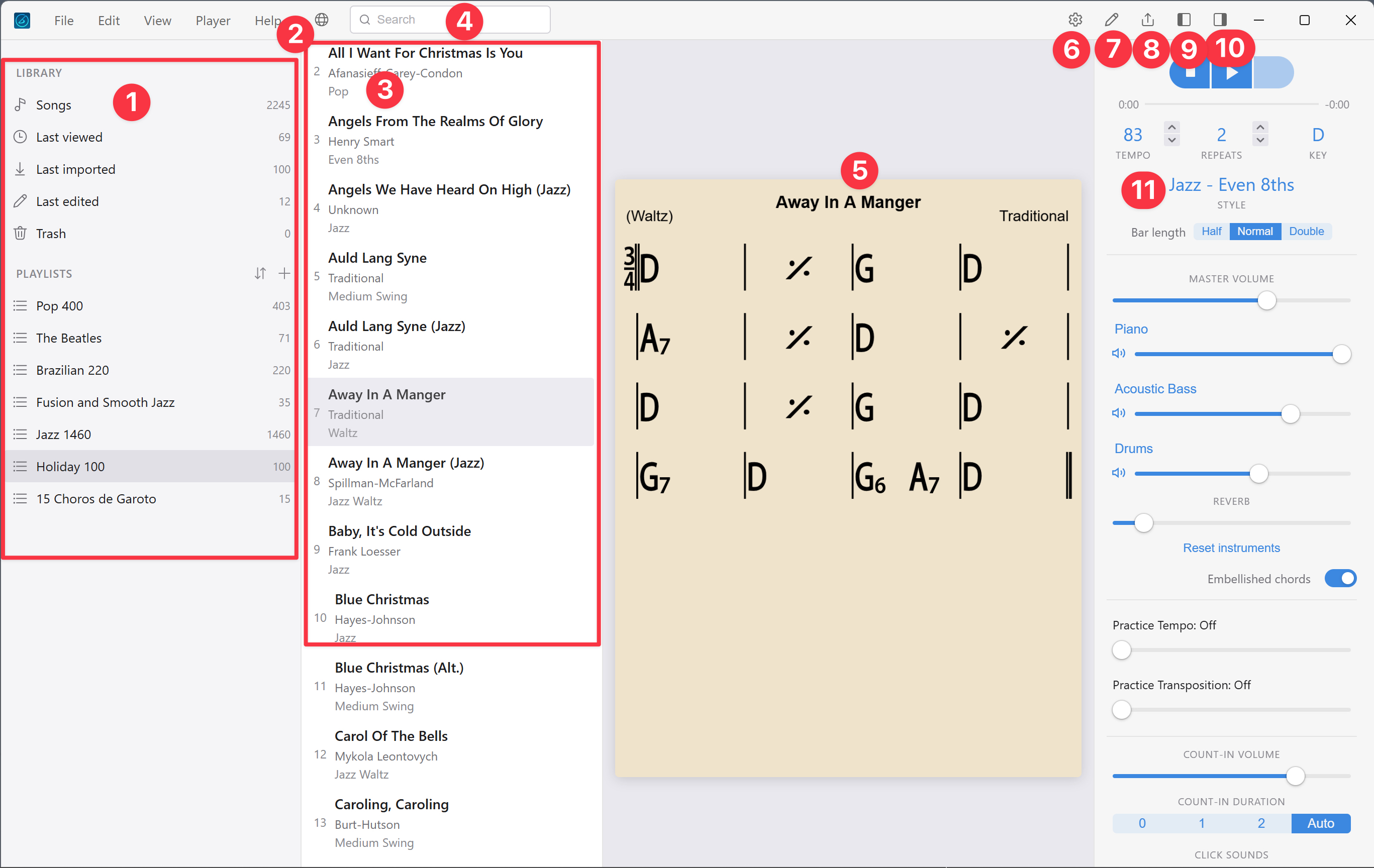
- Song library, Playlists
- Forums globe icon
- Song list
- Search (the currently selected library)
- Current song
- Settings
- Edit, Duplicate, New song
- Share, Export, Search for the song online, Export Playlist
- Library: toggle the left sidebar (or use the View menu)
- Player controls: toggle between the right panel and the minimal bar at the bottom
- Playback style: click for the dropdown menu, Jazz, Latin, Pop and the rest
Existing users
Transfer all your songs and playlists to Windows with a backup file. If you were running iReal Pro in an Android emulator, use the emulator's shared folder, or its file manager in the case of BlueStacks, to copy that backup file out into Windows.
Forums [2]

Click the Forums globe icon [2] to browse and download songs and playlists, all of them free and with no registration needed. Use the Forums window inside iReal Pro rather than a browser, which can have trouble downloading. Sign in to post. See Get songs from the Forums and the Essential Playlists download page.
Import
File > Import takes songs, playlists, and backup files in the iReal Pro format (a variant of .html). It cannot import audio, PDF, or Word documents.
To import from a website, or from the Forums seen in a browser, right-click the song or playlist link, copy the link, return to iReal Pro, and choose File > Import from Clipboard.
Context menus
Right-click a playlist for its options.
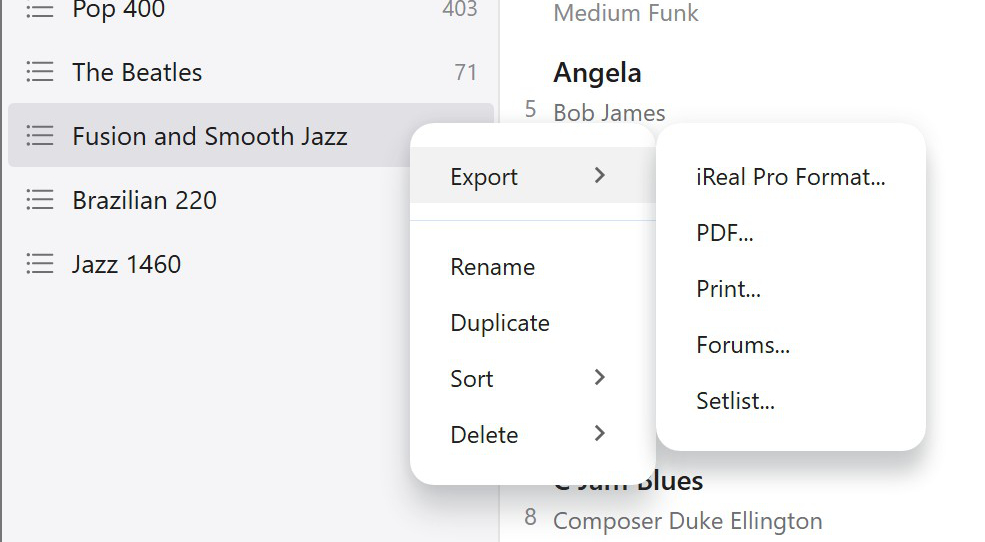
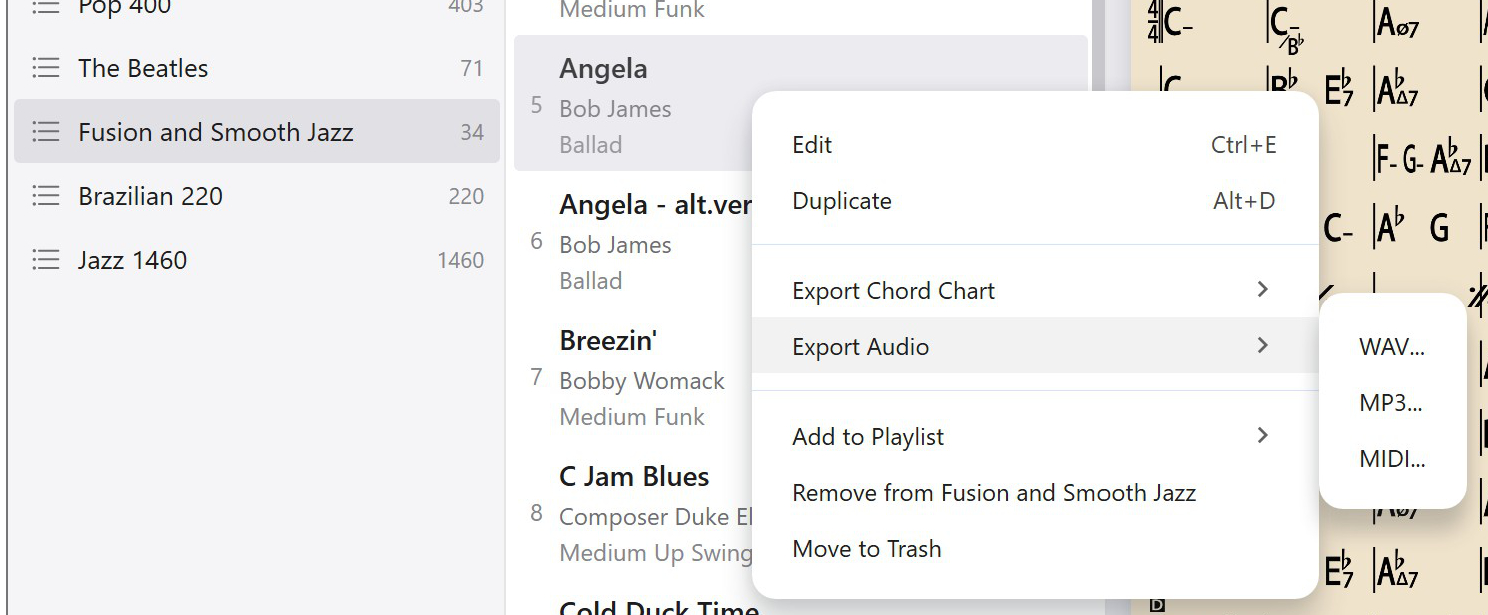
Right-click a song for its options.
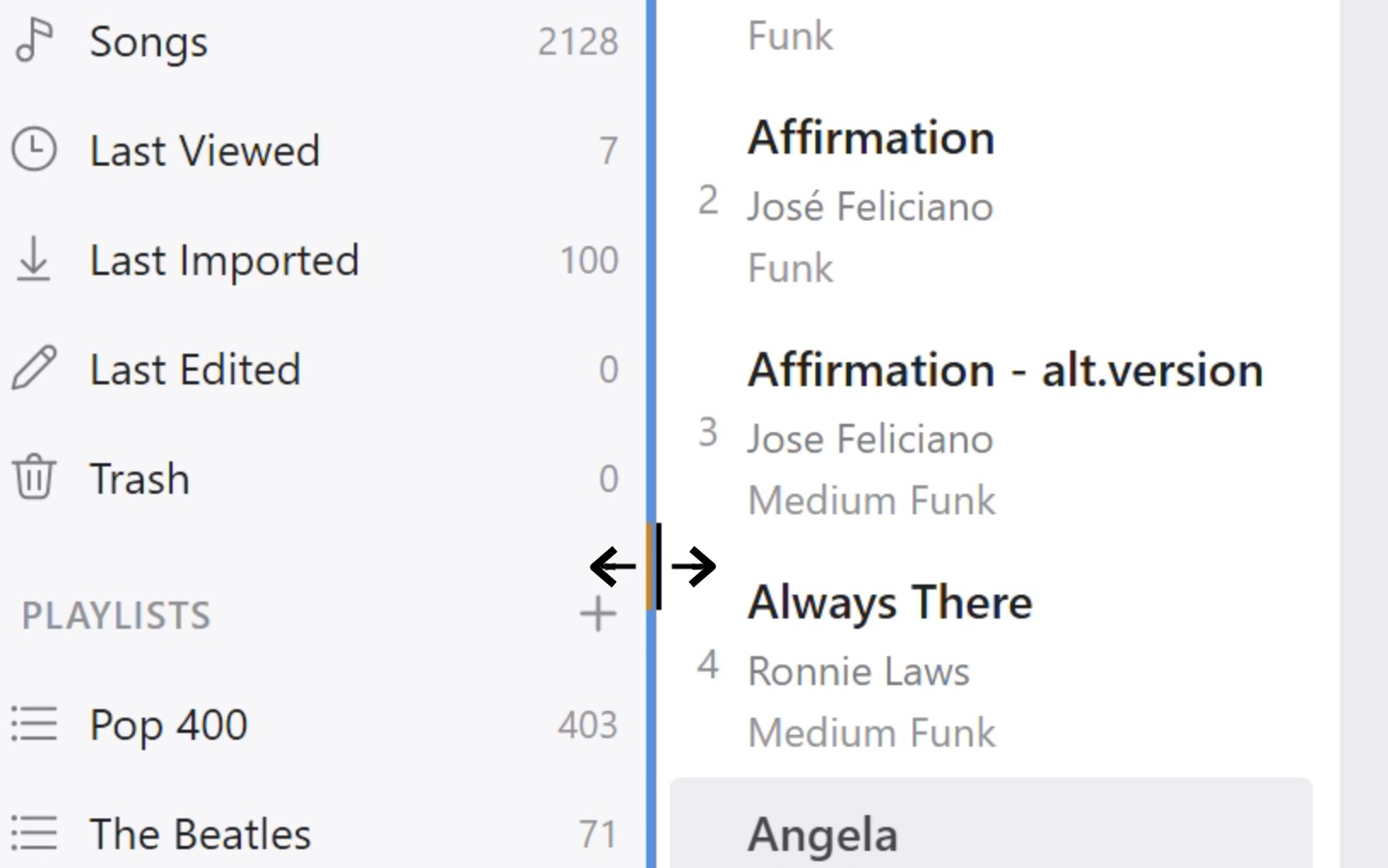
Column width
Put the mouse pointer exactly on the vertical column line and drag it left or right. This works for the Library, the Playlists, and the song column.
Settings [6]
Theme, Font, 'm' for minor, Highlight Rehearsal symbols, Keep display awake, Backup, Library snapshots, Restore Exercises, Reset all settings, Licensing, Add new playlists to the top, Right or Left hand for guitar and ukulele, and Playback position (2026.4.19 or higher).
Language
English, Italian, German, Simplified Chinese, Spanish, French, Portuguese, Russian, Korean, Japanese.
Transposing instrument
- Concert: piano, guitar, flute, voice
- Bb: trumpet, tenor sax, clarinet
- Eb: alto sax
- F: horn
- G: alto flute
Also under Player > Transposing instrument.
Tuning
a415 to a466, with a = 440 Hz as the default.
Store
Buy the optional style packs, currently Blues, Brazilian, and Salsa.
New song
Ctrl-N, or File > New song to choose a template, or click the pencil at the top right.
Editor
- Ctrl-E edits the selected song, and Ctrl-E again leaves the editor
- Key commands are in the Edit menu, and most symbol buttons have a tool tip
- Drag between bars to select a section to cut, copy, paste, or insert space into
Play
The spacebar plays and stops, the period key pauses, and the comma key taps the tempo. The rest are in the Player menu. Drag between bars to create a loop. See Play a song.
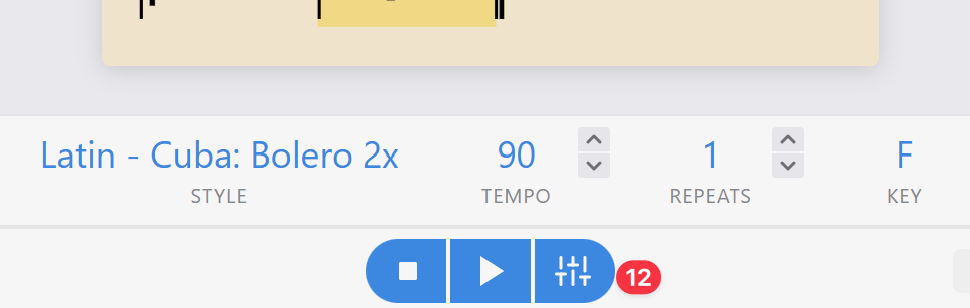
The minimized player controls, at the bottom. Click the mixer [12].
Side windows
Click [9] to cycle the Library and song list on the left. Click [10] to move the player controls between the right-hand panel, which holds everything (player controls, Mixer, Practice settings, count-in), and the minimized bar at the bottom.
Organization
Drag and drop songs, or whole groups of songs, into a playlist. This is also the quickest way to merge one playlist into another. See Organize your songs into playlists.
Backup
File > Backup saves every song and playlist to one file. Save it outside the app, to OneDrive or similar, and do it from time to time. See Back up and restore your library.
Updates
Windows 11 updates your apps automatically. Otherwise open the Microsoft Store, click Downloads, then Check for updates.