
Android, iOS
For v2024.4 and higher
(Check for updates at the App store, but will not update for old OS versions)
You can use external/bluetooth/built-in keyboards with your device making it much quicker to edit. Also use the keyboard to trigger Play etc.
Android
- phones, tablets
- Chromebooks
- Android emulators inside a PC environment
iOS
iPhone, iPad—Apple Smart/Magic Keyboard or paired wireless, bluetooth
General Song key commands
Previous/Next Song
iOS [left/right arrow] (Chromebook as below)
Previous/Next Style
iOS 2026.2 or higher cmd left/right arrow (2026.1 or lower, option left/right arrow)
Android [ctrl left/right arrow]
Transpose
iOS cmd-down/up arrow (2026.1 or lower, option down/up arrow)
Android [ctrl down/up arrow]
Chromebook Previous/Next song: Chromebook users might be able to use the Tab or Down arrow a few times to select a song in the list (on the left), then press Enter to load the song, Space to start play. For the next song in the list, tap Down arrow, Enter.
Search (Chromebook): click into the Song library or into a Playlist, ctrl-F to open the search box.
2026.1 and lower: hold down the command key to see key command list—iPad only. Note, when in landscape, the virtual keyboard might block seeing the full screen of shortcuts).
iPad
2026.2 and higher: key commands in the top menu (iOS26 and above) on the right of each menu option
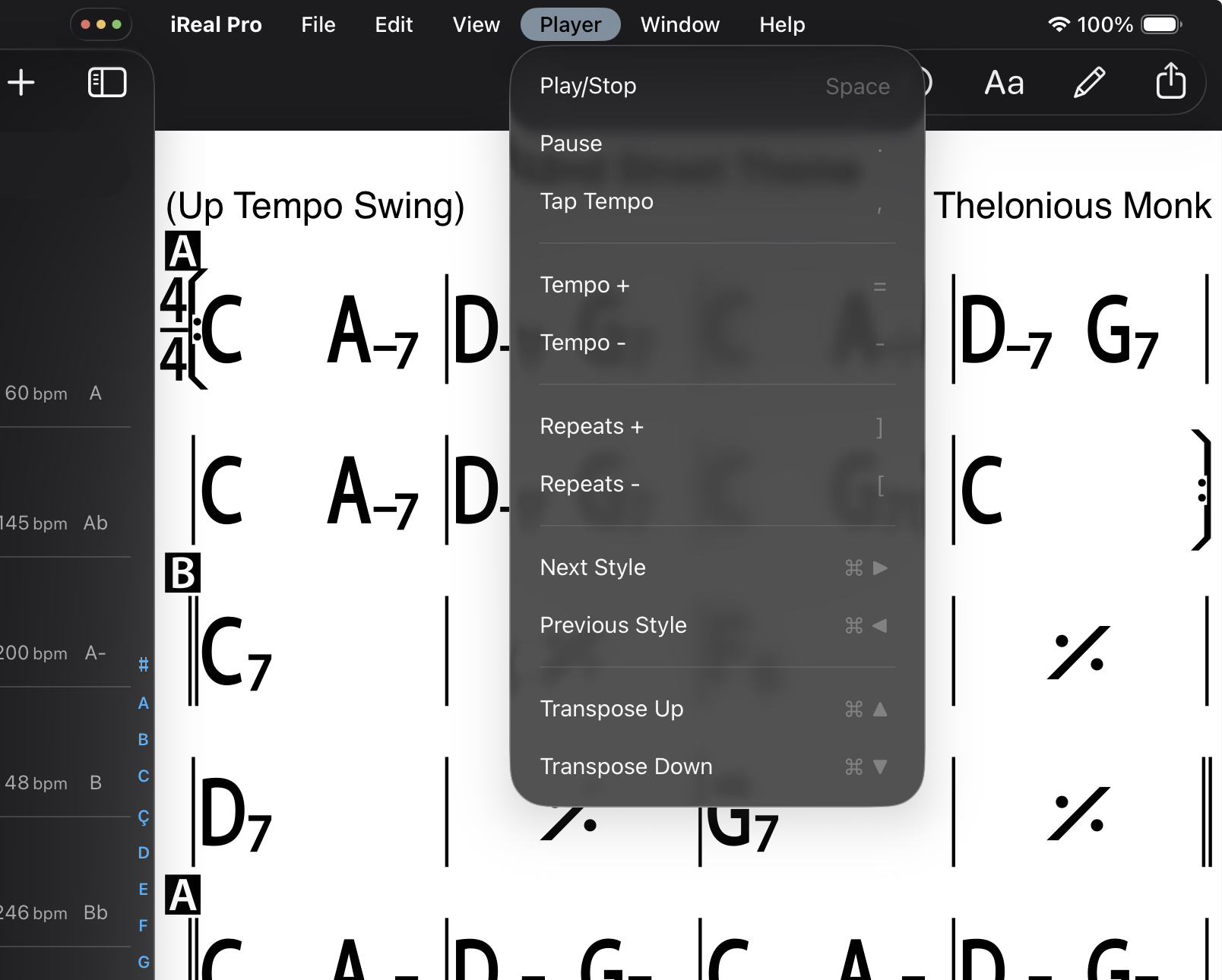
Playing a song
Android/iOS Play key commands:
Play/Stop Spacebar toggles;
Pause period (full stop) key (.) toggling pause/play/pause
Repeats - decrease/increase use [ and ] keys
Tempo - decrease/increase use - and = keys
Tap tempo - , use the comma key
Looping a section of a song
Android Loop: Click/hold on a space until it selects, then drag down, across (etc.) to complete the selection; or after the space selects, drag the blue selection handles to set your loop.
Play: either click the arrows in the first selected measure; or click the Play button; or press Spacebar
iOS Loop: Click/hold on a space until it selects, then drag down, across (etc.) to complete the selection; or after the space selects, drag the blue selection handles to set your loop.
Either click the arrows in the first selected measure or the Play button to begin loop play, or press Spacebar.
EDITING
iOS (2026.1 or lower) hold down cmd key to see key commands in Edit mode
iPad (2026.2 or higher) In the Editor, swipe down at the top to show the menu bar. Tap Edit for key command options
iOS Edit key commands
2026.2 and higher
Edit Cmd-E to Edit a song and to close editing
(2026.1 or lower: cmd-E to Edit the song chart, cmd-W to close editing)
Save cmd-S Save the song while editing
Return moves the cursor to the Next space (or use arrows)
Android Edit key commands
Edit Ctrl-E to Edit the song chart
Save Ctrl-S Save the song while editing
Close Ctrl-W Close the editor
Enter/Return (Next) moves the cursor to the next space (or use arrows)
Barlines (left barlines only)
Ctrl/Cmd-B repeatedly to cycle barline types
Backspace/Delete button
pressed repeatedly, the cursor will reverse towards the beginning of the chart deleting chords, symbols, text one-by-one as it moves backwards
Chord symbols
use your keyboard to type in the chords, if preferred
Make sure you enter the more complex symbols in the correct character sequence.
Example 1
f 7 b 9 (for F7b9)
d b s u s (for Dbsus)
fadd9 (Fadd9)
eb^-69 (Eb^-69)
d7/c (D7/C)
Use Enter/Return key (Next) to move through the next spaces.
Example 2
for a bar with E7 type: e 7 [Enter/Return] a few times then Ctrl/Cmd-B for the next barline
Click the buttons for Coda (or Segno, Fermata, End) Rehearsal letters, etc.
Info (Song title, composer, style, default key)
Ctrl/Cmd-I
Invisible chord/inversion (bass note)
w / [then chord letter] (For example w/g for /G)
N.C. (no chord, drums remain playing)
n type letter n on your keyboard
Navigation
use the arrows (up, down, left, right) to move around the chart (although a mouse click or screen tap is quick)
Repeat symbols
use % for single repeat of previous measure
use x for repeat the last two bars. For example: (x [Enter] Ctrl/Cmd-B [Enter]...)
Slash /
/ key on your keyboard
Spacing
Add space, click a space
Ctrl/Cmd-\
Delete space, click a space
Ctrl/Cmd-Backspace/Delete
Text (add text or DC, DS indications etc.)
Ctrl/Cmd-T (not on Chromebooks)
Android: to exit click the x
iOS: press the Return key or click the x
Undo
Ctrl/Cmd-Z
SELECTION
To make a selection:
Android
Click and hold on a measure (typically the first measure of your selection.) Move the blue selection handles to select the measure range. Use the usual key commands for Cut, Copy, Paste
PASTE - double click a space, Ctrl-V (Moves subsequent measures forward)
More here Copy and Paste
iOS
Use arrows to move the cursor to the desired location to start the selection area (or mouse click);
while holding down Shift, continue using arrows (e.g. right or down arrows) to select measures. Use the standard key commands for cut, copy, paste.
PASTE - double click the space (or use arrows), Ctrl-V (Moves subsequent measures forward)
More here Copy and Paste
Android/iOS
[Ctrl for Android /Cmd for iOS]
Cut Ctrl/Cmd-X
Copy Ctrl/Cmd-C
Paste insert Ctrl/Cmd-V
Delete space Ctrl/Cmd-Backspace/Delete
Insert space Ctrl/Cmd-\
See Adjust bar size
Undo Ctrl/Cmd-Z
Clear selection Esc key