
Windows, Mac
- click the Edit (pencil) button top right
- use the key command, Cmd-E
- File menu > Edit song
or right-cick on the Song title > Edit song
Save, Done
Top right in the Editor, Save and Done
Cmd/Ctrl-E to open and close editor
Cmd/Ctrl-S to Save and continue editing
Edit panel
Mac version shown
(Windows similar to Mac, some buttons in different places)
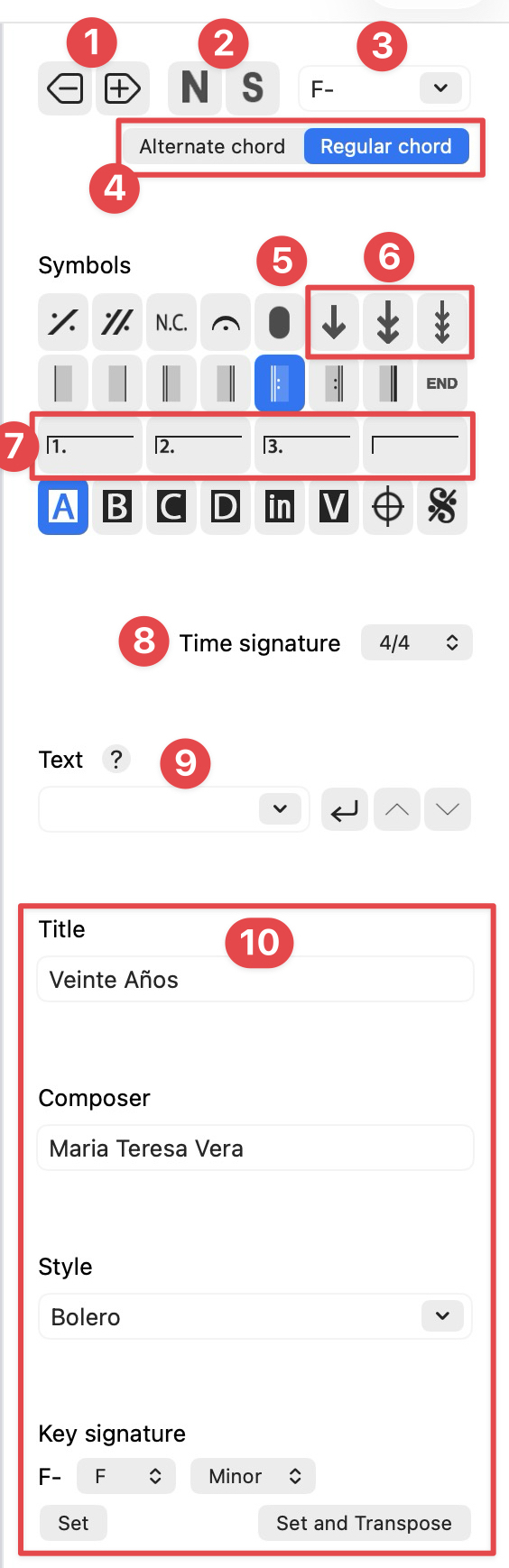
- Delete/Add space in the chart
- Change the font size of the chord: N: normal, S: small (toggles between insert/delete/insert...)
- Chord quality button (enter the Chord letter then select the chord quality from drop-down menu like ^7, 7, 7b9) or use the keyboard to type in (see below)
- Alternative chord: click on the button to add small chords above the existing chord (Note: the player ignores them). (Click Regular chord to return to normal chord input.)
- Invisible root: repeats the previous chord over the specified bass note (inversion)
- Down arrows to add vertical space: They toggle between insert/delete/insert...) Often used to separate a Coda section or if inversions were used in the system (line) above
- Repeat endings: 1st ending, 2nd ending, 3rd ending, open repeat (toggles between insert/delete/insert....
- Set the Time signature at the cursor
- Type in any text or for repeat texts use the drop-down menu (D.C. al Coda, D.S. al Coda, 3x, 4x etc.). Move the text vertically by clicking the arrows.
- Song Info: edit the Title, Composer, Style indication and Key of the song. Make sure you choose the correct key signature for the chords key you are inputting, then click Set.
Some symbol buttons toggle between insert/delete/insert ... to either input or delete (e.g. END, Segno, Coda symbol, Rehearsal letters)
Editor key commands
(Key commands list on the right of menu entries. Hover mouse over the editor buttons for tool tips)
Open and close editor for the song Cmd/Ctrl-E
Save Cmd/Ctrl-S
Barlines
Single barline—left Cmd/Ctrl-B; right Cmd/Ctrl-Shift-B
Double barline—left Cmd/Ctrl-D; right Cmd/Ctrl-Shift-D
Repeat opening barline Cmd/Ctrl-R; Closing Cmd/Ctrl-Shift-R
Final barline Cmd-] (Mac key command only)
Barlines toggle between input/delete/input, but the single and double are either right or left, so if a barline does not delete, click in the space on the other side of the barline and use the other barline equivalent button to delete instead
Chord input example:
|F7 |Bb7b9 Eb9 | is input:
f 7 [return][return][return][return] cmd-B b b 7 b 9 [return][return] e b 9 [return][return] cmd-B
or to save space f 7 [return] cmd-B b b 7 b 9 [return] e b 9 [return] cmd-B (change to Font size small)
Use ^ for maj, hyphen for minor (-), lowercase letter o for dim, option-o for half dim (depending on keyboard language settings) (ø)
Windows only, you can type letter m for minor if you wish, it gets converted to a hyphen.
Show either m or - (hyphen) for minor
Delete/Backspace
Pressing it repeatedly moves backwards towards the beginning of the chart, deleting one-by-one, chord quality, chords, text, barlines etc.
Font size [2 above]
N or S remains in place until the other is inserted
Key commands Mac only
Cmd-Option-N Normal size font (toggles between insert/delete/insert)
Cmd-Option-S Small size font (toggles between insert/delete/insert)
N.C. type lowercase letter n
Play
Mac only: Double-click inside a measure to play from that measure (click on the chart to Stop play)
Repeats
Single measure repeat - %
Two measure repeat - x
Selection
Cut Cmd/Ctrl-X
Copy Cmd/Ctrl-C
Paste Cmd/Ctrl-V
Paste insert Cmd-V; measures will move forward
Paste over select a range of measures the same as for the cut/copy, Cmd/Ctrl-V; measures selected are deleted
Insert space select the number of spaces where you want to insert blank space, right click

Slash ( / )
Press the / key on your keyboard.
(Indicates a beat or serves as a slash for the bass note in case of typing in inversions like G/D)
Add or Delete a space (at the cursor )
Insert a space (bars move forward)
Cmd/Ctrl-\
Delete a space (the selected space is deleted, bars move backward)
Mac: Cmd-Delete key
Windows: Ctrl-Backspace